Solutions / Touch Keyboard / How to connect the Touch Keyboard to the Affinity/Equinox Suite
How to connect the Touch Keyboard to the Affinity/Equinox Suite

How to connect the Touch Keyboard to the Affinity/Equinox Suite

In this quick guide, you will learn how to connect the Touch Keyboard to the Affinity/Equinox Suite with a splitter cable and a single USB-C cable. Read more.
Get a quote Find a distributor

Standard parts

Power supply: UES60LCP-200300SPC
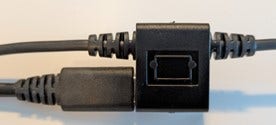
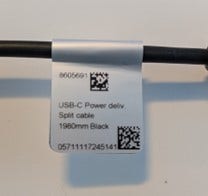
Power splitter cable, 2 meters
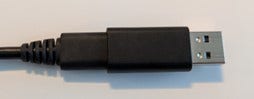
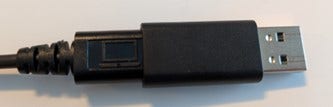
USB-C to USB-A adapter (for use with USB-A ports)
Ensure the Touch Keyboard is charged before use. Only use the supplied charger or a PC’s USB port to charge the Touch Keyboard.
Note: The direct USB-C connection may not provide sufficient power or may result in slower charging. USB-A ports will not provide sufficient power to charge the keyboard.
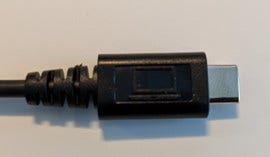
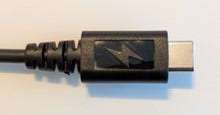
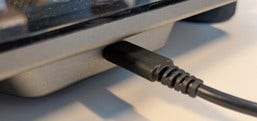
1. Connect the USB-C cable to the Touch Keyboard.
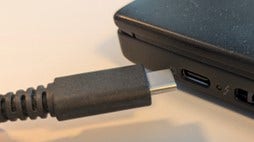
2. Connect to a USB-C port on the PC.
3. If needed, use the USB-C to USB-A adapter.

Contact your local distributor

Our world-wide experts are ready to help you find the right solution.
Find a distributor