Solutions / Hearing Aid Fitting / Print Reports
Print Reports
Print Reports
Learn how to create customized print templates for the Affinity 2.0, which can be linked to individual protocols for quick printing.
Affinity 2.0 Support
Using the Print WizardIn the Print Wizard you have the option to create customized print templates which can be linked to individual protocols for quick printing. The Print Wizard can be reached in two ways.
If you want to use a template for general use, or select an existing one for printing: Go to Menu/ File/Print Layout… in any of the Affinity2.0 Suite tabs (AUD, REM or HIT)
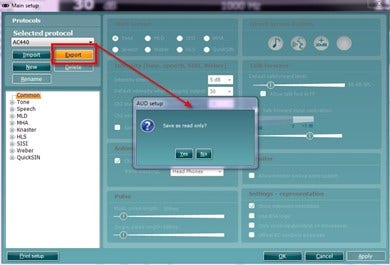
If you want to create a template or select an existing one to link to a specific protocol: Select the Module tab (AUD, REM, or HIT) relating to the specific protocol and select Menu/Setup/AC440 setup,Menu/Setup/REM440 setup, or Menu/Setup HIT440 setup. Select the specific protocol from the drop down menu and select Print Setup at the bottom of the window.There is an additional quick guide to explain how to create a template, it is titled ‘Quick Guide –Customised Printout Setup’.
Now the Print Wizard window opens and shows the following information and functionalities
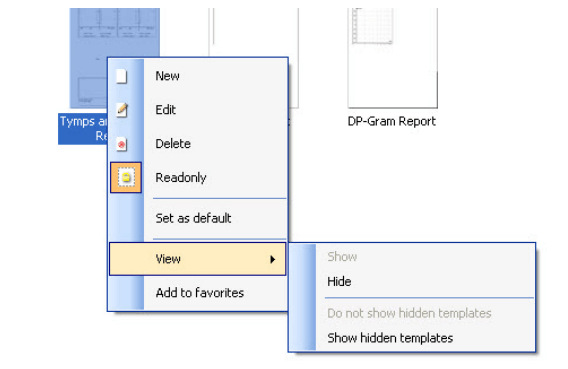
Underneath Categories you can select Templates to show all available templates Factory defaults to show only standard templates User defined to show only custom templates Hidden to show hidden templates My favorites to show only templates marked as a favorite
Templates to show all available templates
Factory defaults to show only standard templates
User defined to show only custom templates
Contact your local distributor
Our world-wide experts are ready to help you find the right solution.