Solutions / Balance Testing Equipment / How to perform the Lateral Head Roll test
How to perform the Lateral Head Roll test

How to perform the Lateral Head Roll test

Learn how to perform the lateral head roll (LHR) test with the VisualEyes™ software.
Get a quote Find a distributor
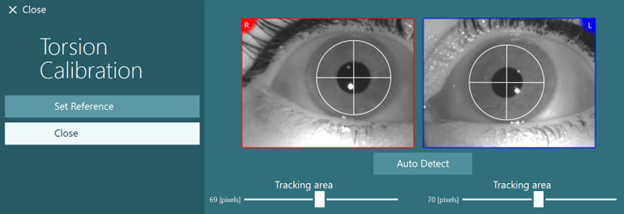
Torsion Calibration screen displaying live video of the right and left eyes. An Auto Detect function automatically detects the center of the pupil, with a customizable, circular tracking area in pixels.

VisualEyes™ Support

The Lateral Head Roll test is part of the VORTEQ™ Assessment bundle. The Lateral Head Roll test is performed to identify horizontal canal BPPV and has additional features that provide significant improvements over the standard positional tests:

3D head model guide to show the head position of the patient in real-time and during playback.
Guide to assist in proper head placement with exact degree of head positioning.
Pause during roll right and roll left to ensure clean data collection.
Automatic test start (optional).
If you have not previously calibrated your eyes, you must do that first. It is also required to calibrate for torsion prior to this test.
Select the Lateral Head Roll test from your test menu.
Once the system is calibrated, you are ready to begin testing. You will use the 3D head model to guide you through the appropriate head/body positions for the test. Make sure the VORTEQ IMU is attached to the goggles and turned on. The test is performed with the patient supine (laying down).
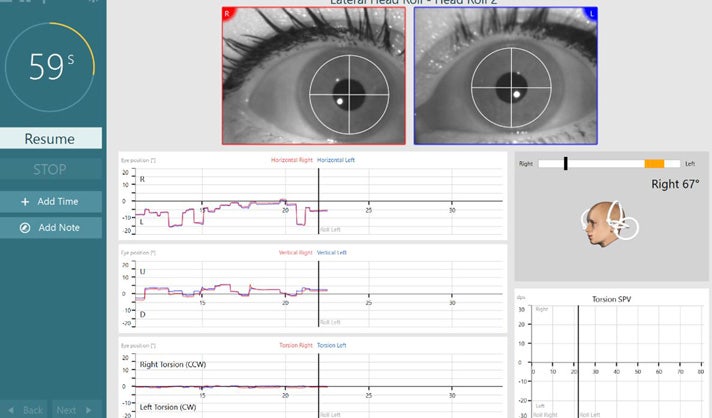
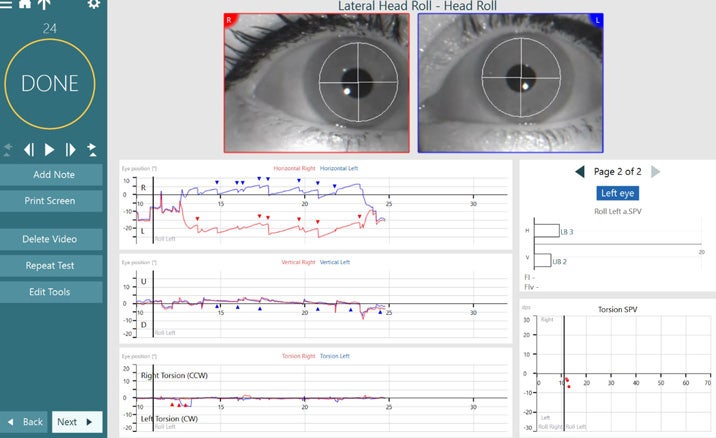
Lateral Head Roll test screen. To the left the user has the options to Resume, STOP, Add Time, or Add Note. In the middle there is a live video feed of the right and left eyes and horizontal, vertical, and torsional eye position data. The 3D head model is to the right, displaying the current head position visually and in the amount of degrees.

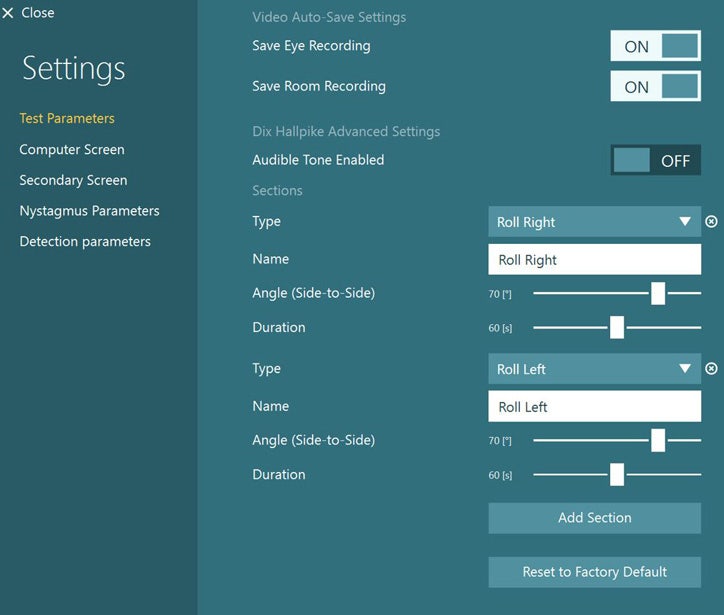
In this example, the user has two test sections in this order: Roll Right and Roll Left. For both test sections, the angle is set to 70 degrees (side-to-side) and the duration is set to 60 seconds. Both these parameters can be adjusted using a slider.

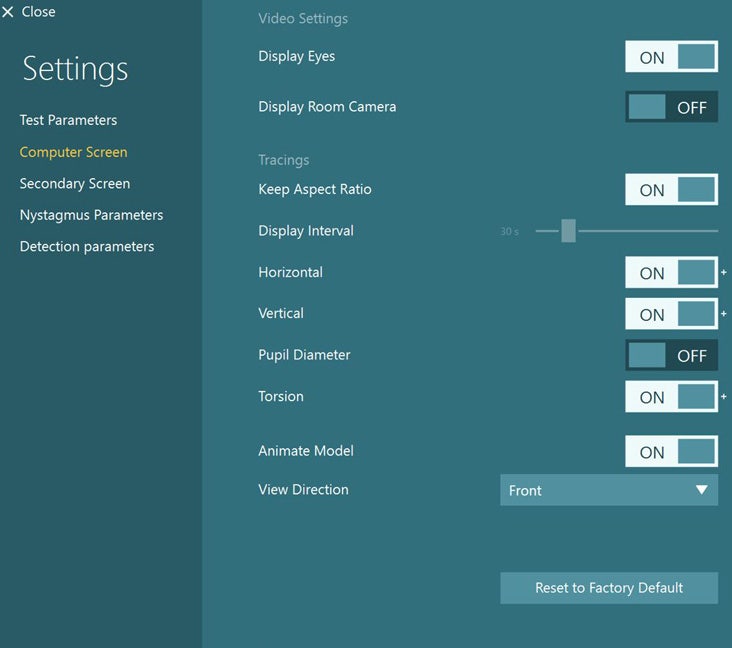
The settings are divided into two sections: Video Settings and Tracings. Under Video Settings, the user can toggle Display Eyes and Display Room Camera on or off. Under Tracings, the following can be toggled on or off: Keep Aspect Ratio, Horizontal, Vertical, Pupil Diameter, Torsion, and Animate Model. Display Interval in seconds can be adjusted with a slider. View Direction is set to Front and can be adjusted via a drop down menu.

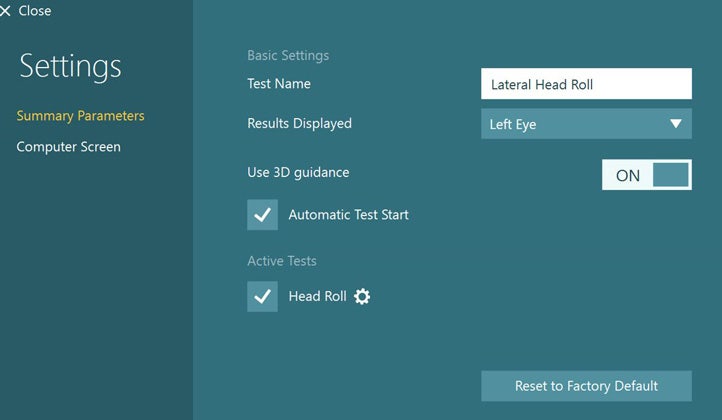
Summary Parameters screen for Lateral Head Roll, including the option to enable or disable Automatic Test Start.

Contact your local distributor

Our world-wide experts are ready to help you find the right solution.
Find a distributor