Computer setup
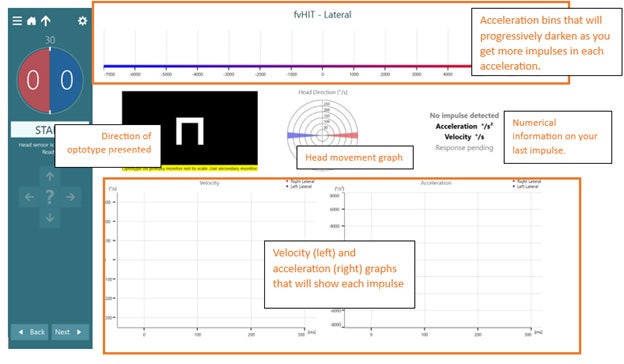
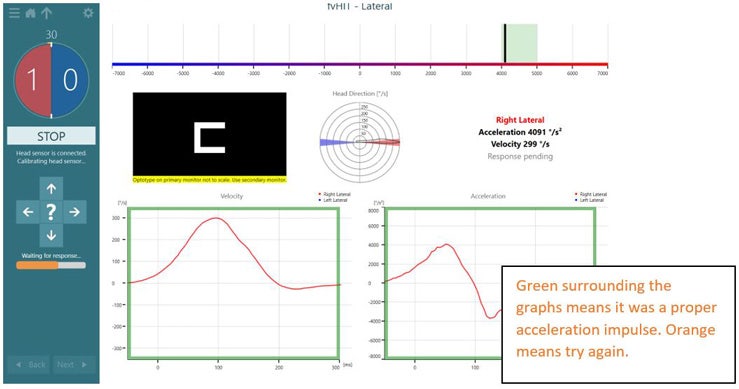
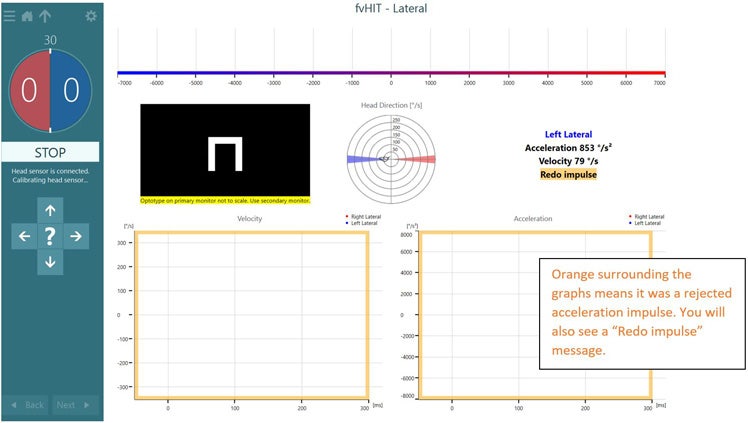
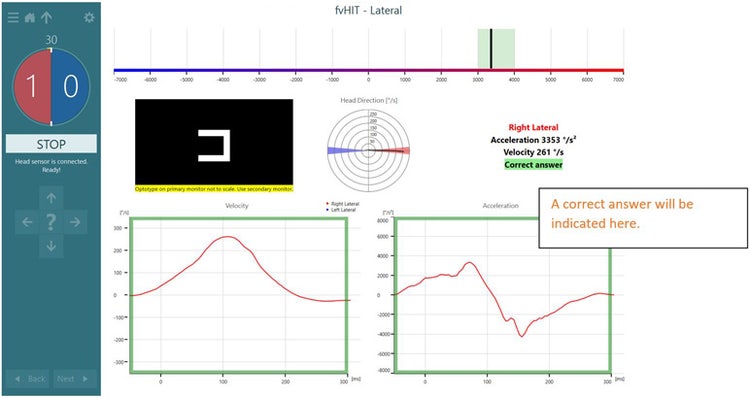
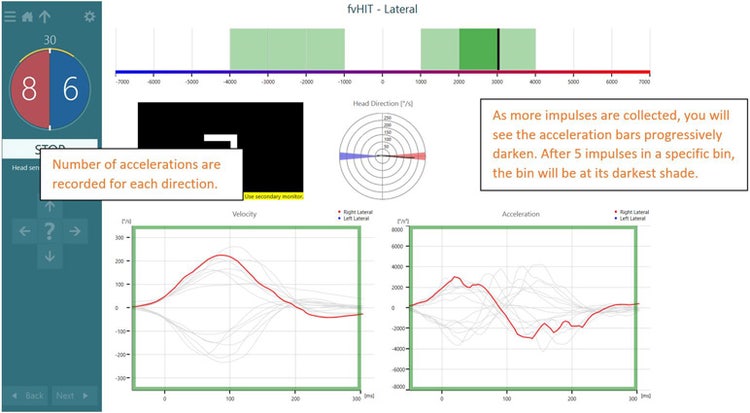
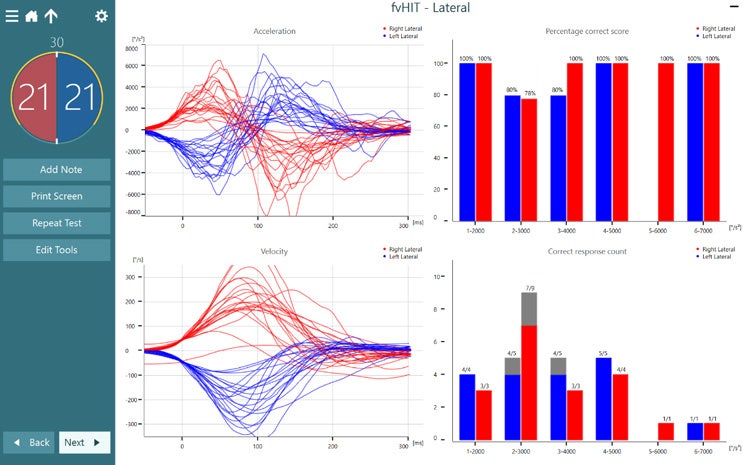
In this quick guide, you will learn how to perform the Functional Vision Head Impulse Test (fvHIT), which provides functional information about how clearly the patient sees in response to quick head impulses and is similar in technique to the Video Head Impulse Test (vHIT).
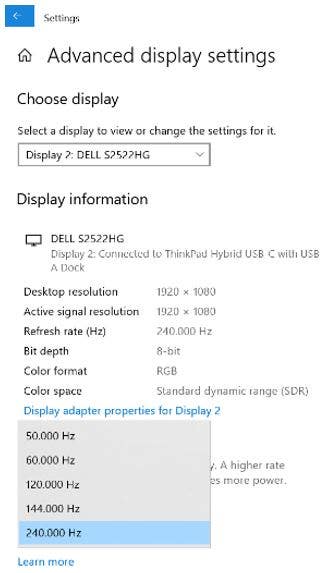
A high-speed monitor (240 Hz) is recommended to ensure the most accurate optotype display time at the peak of the head impulse. Whether you have a high-speed monitor or not, you may still have the ability to adjust the refresh speed rate for your stimuli display. Go to computer display settings and advanced display settings. Choose the highest refresh speed rate you have for your stimuli.
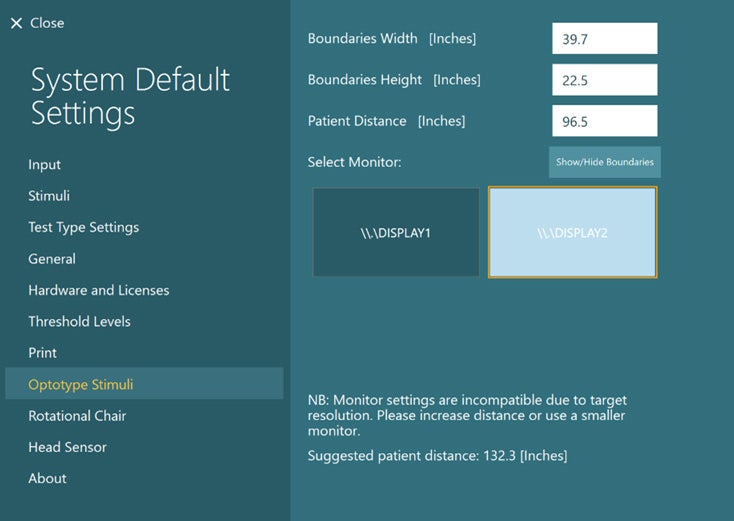
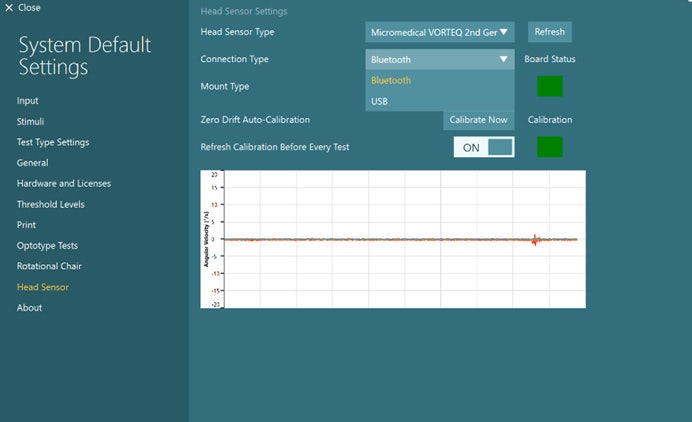
Select the Optotype Stimuli display source and set the screen size and patient distance in the System Default Settings before beginning the first test. A suggested patient distance will be identified for your screen dimensions.
If the distance is too much for your room set up, then choose a smaller display input. It is suggested to consider utilizing a smaller monitor than your oculomotor screen for optotype tests (DVA, GST, fvHIT).
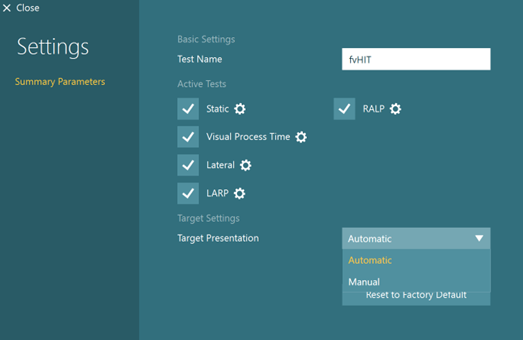
The default protocol is automatic, but you can also choose a manual target presentation for the Static Visual Acuity and Visual Processing Time tests in the fvHIT protocol. You can choose the options in Summary Parameters.
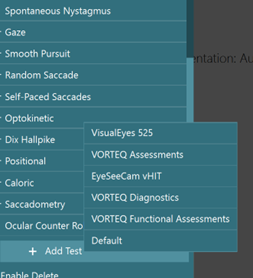
While in a test session with a patient, you can select fvHIT from your default, VORTEQ™ Assessments, or VORTEQ Functional Assessments protocols if you have not done so already.
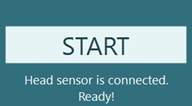
Make sure you have attached the VORTEQ sensor to the headband and turned it on. Below the start button, you should see “Head Sensor is connected. Ready!” before pressing start.
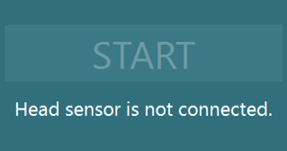
If the IMU is not turned on, you will see this error message.