Solutions / Balance Testing Equipment / How to use VisualEyes™ EyeSeeCam
How to use VisualEyes™ EyeSeeCam

How to use VisualEyes™ EyeSeeCam

In this guide, you will learn how to use the EyeSeeCam vHIT software within the VisualEyes™ videonystagmography (VNG) system.
Get a quote Find a distributor
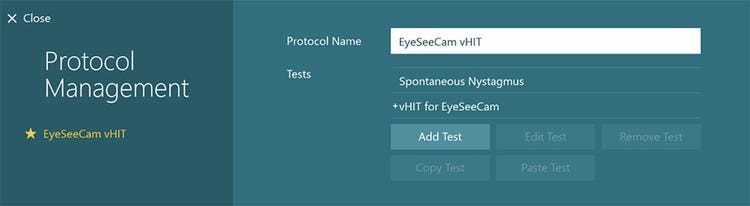
Protocol management screen. Protocol name is 'EyeSeeCam vHIT'. Two available tests: spontaneous nystagmus and vHIT for EyeSeeCam. There is a button available to add a test. There are four greyed out buttons, including: edit test, remove test, copy test, and paste test.

VisualEyes™ Support

Standalone ESC vHIT includes a Spontaneous Nystagmus test where you can record eye movements before beginning your vHIT test protocols.
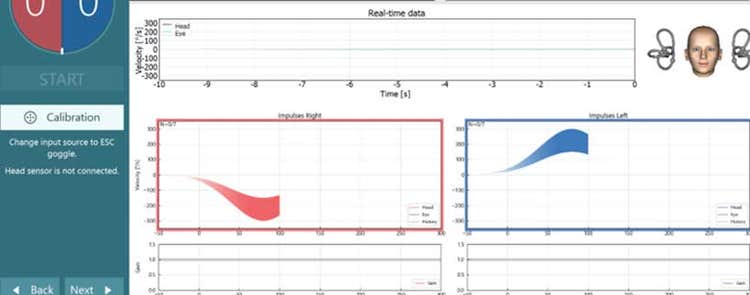
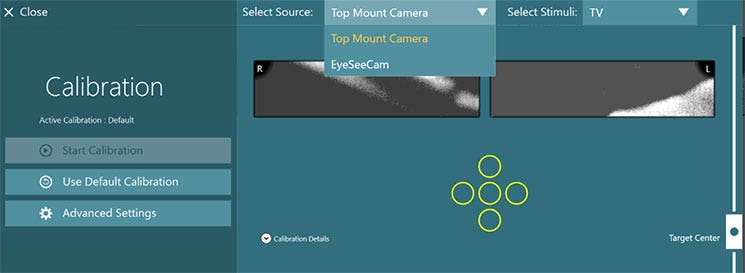
Figure 1 - EyeSeeCam standalone default protocol
If you purchase licenses for both ESC vHIT and VNG, you can opt to use the ESC goggle for some of the VNG protocols.
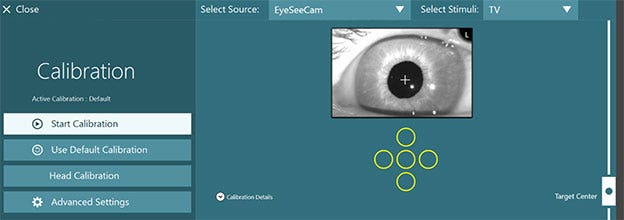
You should always start by calibrating the system. For the lateral canals, you will calibrate the eyes to fixed targets.
Figure 2 - Calibration prompt before you begin testing
If you are beginning your VNG/vHIT test battery with ESC vHIT as the first test in the battery, you will need to select the ESC camera as your input source. You can do this in system set up or in the calibration screen. You will see a note telling you to switch your camera source if that camera type is not supported by the current protocol.
Figure 3 - Select the camera source
You will also need to decide which stimulus source you want to use for target presentations. You can choose between the TV and the laser. It is highly suggested that you continue to use the laser for calibrating and testing vHIT and SHIMP. The reason is that most clinic set ups have the patient seated close to the TV screen and this is not ideal for vHIT. The laser dots should be projected onto a clear wall surface at least 1.5 meters from the patient. If the patient is seated too close to the targets, it can result in higher-than-expected gains.

vHIT test screen, showing calibration prompt toward the left

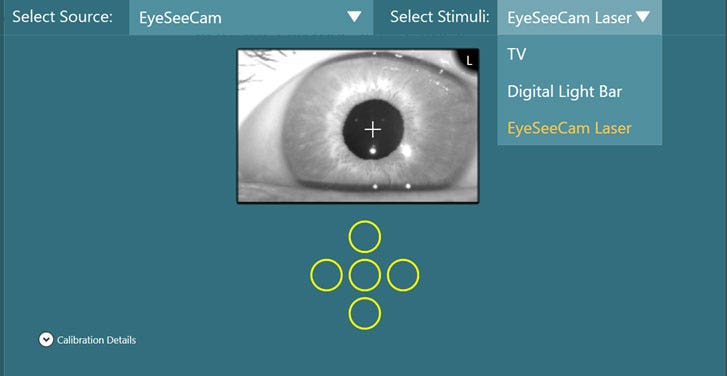
vHIT calibration screen, demonstrating camera source drop down list with two available options: top mount camera or EyeSeeCam.

vHIT calibration screen, demonstrating stimuli source drop down list with three available options: TV, digital light bar or EyeSeeCam laser.

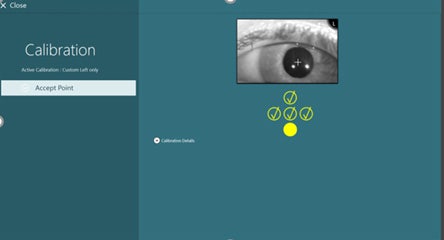
Five dots below eye imagery, four of which have a yellow checkmark. Shows test progress with checkmarks for correctly calibrated points.

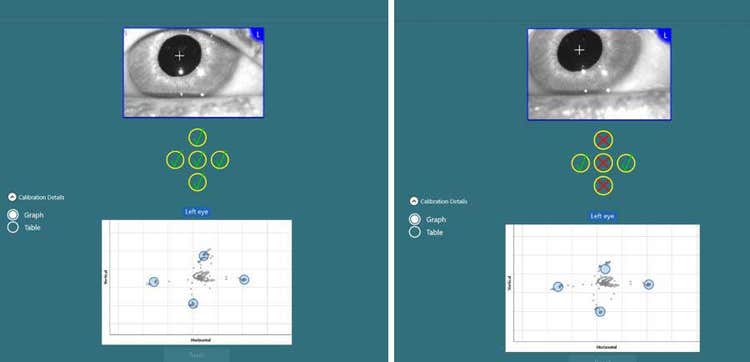
Two calibration overviews for the left eye displayed in a graph. One of the calibrations shows green checkmarks for all five eye positions. The other calibration shows three red x for the vertical eye positions.

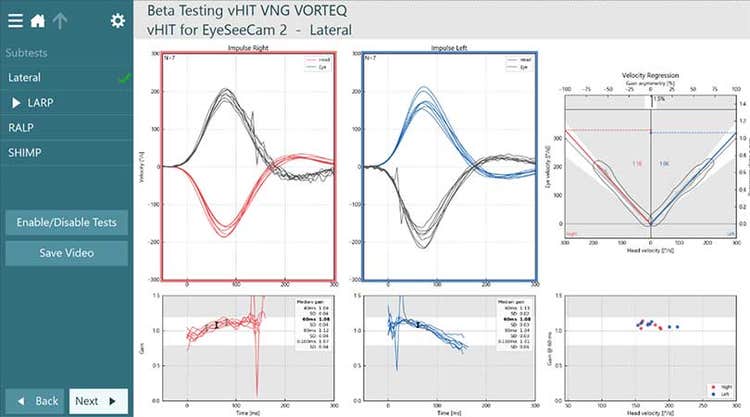
Normal values for velocity regression, head velocity and gain.

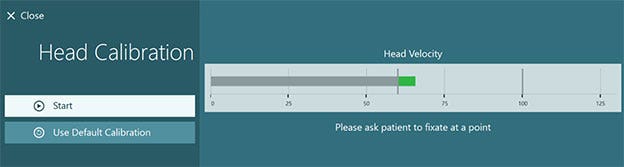
Head velocity bar in degrees per second with a grey line that starts at 0 and ends at about 60. The bar then turns green to indicate the head velocity is correct, between 60 and 100. The green bar peaks at about 65.

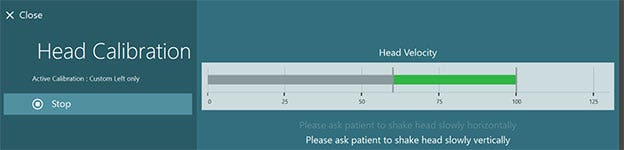
Head velocity bar in degrees per second with a grey line that starts at 0 and ends at about 60. The bar then turns green to indicate the head velocity is correct, between 60 and 100. The green bar peaks at just below 100.

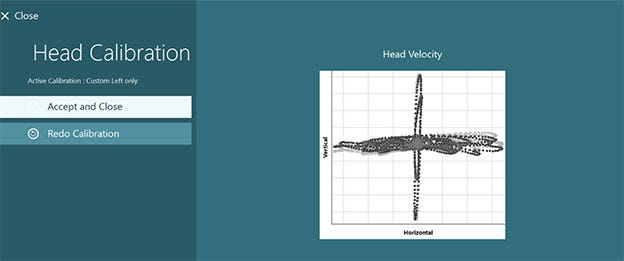
Resembles a cross, perpendicular to the center dot.

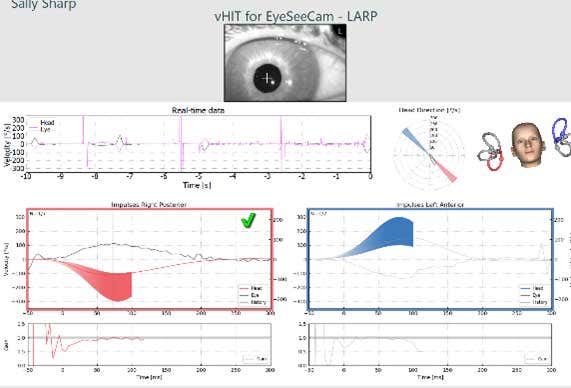
Results for left posterior, left lateral, left anterior, right anterior, right lateral, and right posterior.]

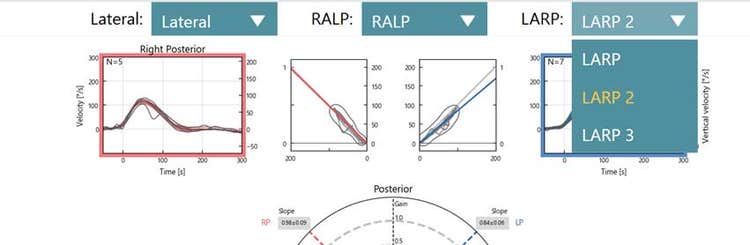
EyeSeeSix report, zoomed in on available test options for LARP, including LARP, LARP 2, and LARP 3.

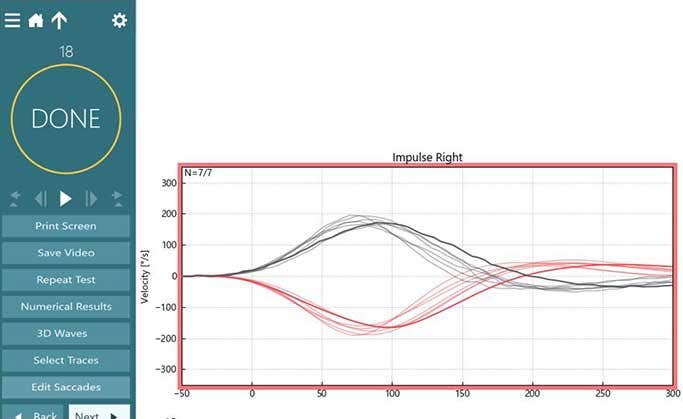
Normal right head impulse displayed in majority of the screen. A list of options are available to the left, including the following: print screen, save video, repeat test, numerical results, 3d waves, select traces, and edit saccades.

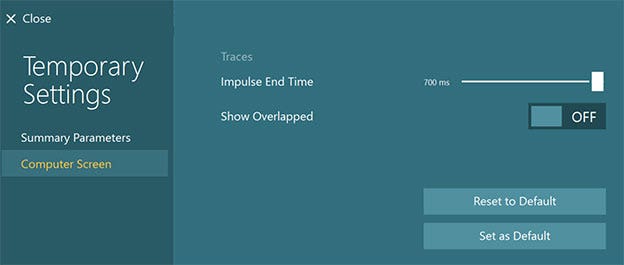
Computer screen options for traces, including the following: impulse end time, which is set to 700 ms, using a slider. And show overlapped, which is set to OFF. Two buttons are also available to reset values to default and to set values as default.

Eye calibration screen, with calibration yet to be started.

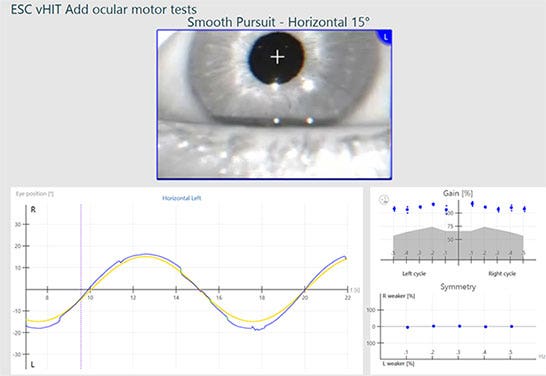
15-degree, horizontal smooth pursuit test overview for left eye. Normal values for eye position, gain and symmetry.

Contact your local distributor

Our world-wide experts are ready to help you find the right solution.
Find a distributor