Equipment needed
This quick guide provides information on how to perform the MatchingVR module on the Virtualis PhysioVR, StaticVR, and MotionVR solutions. For additional information, please reference the MatchingVR user manual.
To view the equipment needed, click on the “i” icon in the upper right corner of the module.
To perform this module on the PhysioVR solution, you will need the VR headset and 1 controller or tracker.
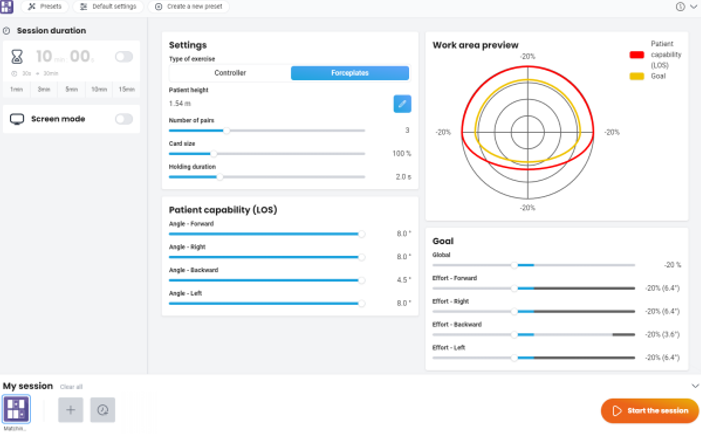
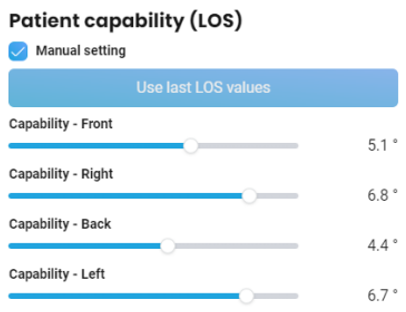
To perform this module on the StaticVR or MotionVR solutions, you will need the static or dynamic force plates. The VR headset is optional for this module, however if you do not use the VR headset, you will need a secondary screen to perform in “Screen mode”, which allows the patient to see the virtual environment on a screen.
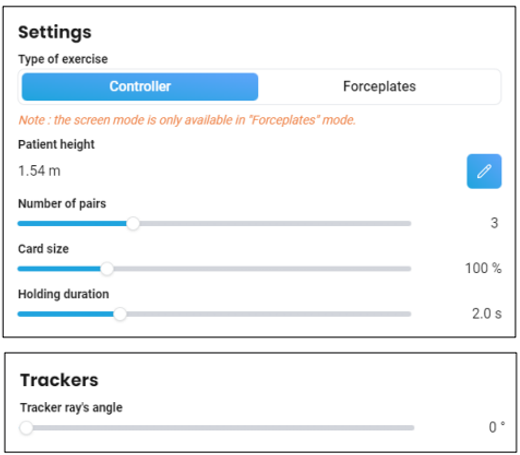
The patient can sit or stand when using this module in Controller mode, however the patient must stand when using the Forceplates mode.
1. Open a patient profile.
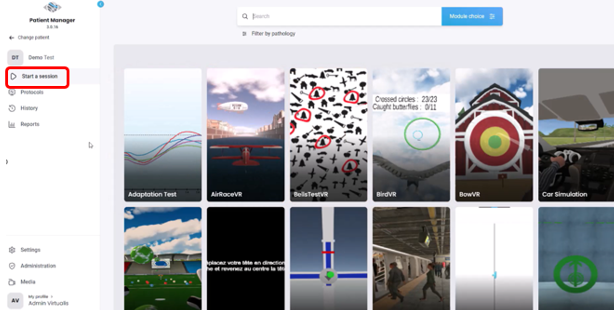
2. Click on “Start a session” to access the module list.
3. Type “MatchingVR” in the search bar. The first three letters are often enough.