Solutions / Balance Testing Equipment / How to perform a room setup
How to perform a room setup
How to perform a room setup
This quick guide provides information on how to complete a room setup in the SteamVR application for the HTC Vive Pro 2 VR headset. For use with the StaticVR.
Overview
It is recommended to complete a room setup at the beginning of each clinic day, when power is interrupted, if the base stations have moved, or you are experiencing tracking issues in the Virtualis software.
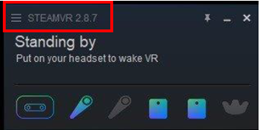
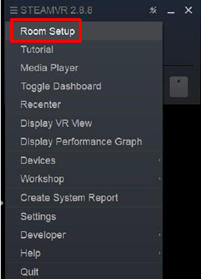
1. Click on the hamburger icon in the SteamVR application.
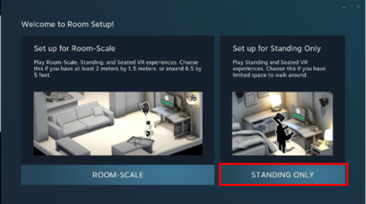
3. Select the “Standing only” option.
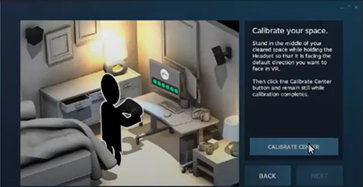
4. Place the VR headset on the ground. If you have a MotionVR solution, place the VR headset directly on the force plate.
5. Click “Calibrate center”.
The VR headset does not need to be centered now but should be calibrated when you launch each software module by pressing the “C” key on the keyboard.
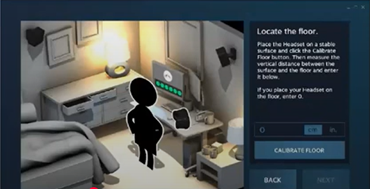
7. For BalanceVR, PhysioVR and StaticVR solutions, enter “0 cm” in the box, then select “Calibrate floor”.
For MotionVR solutions, input “-12 cm” in the box and press “Calibrate floor”. This ensures proper calibration, as the force plate rises 12 cm when any software module is launched.

Contact your local distributor
Our world-wide experts are ready to help you find the right solution.