Solutions / Balance Testing Equipment / How to reconfigure the room boundary: HTC Vive Focus Vision VR headset
How to reconfigure the room boundary: HTC Vive Focus Vision VR headset
How to reconfigure the room boundary: HTC Vive Focus Vision VR headset
Learn how to reconfigure the room boundary with the HTC Vive Focus Vision VR headset, used alongside the Virtualis MotionVR CDP system. Read more.
Overview
This quick guide provides information on how to reconfigure the room boundary in the HTC Vive Focus Vision VR headset.
If you need to reconfigure the room boundary you will be automatically prompted. This usually occurs when you move the location of your Virtualis solution or the room boundary was lost. If you move locations of your Virtualis solution but you are not prompted, please use the troubleshooting quick guide.
1. Turn on your VR headset. You will be prompted to reconfigure the boundary.
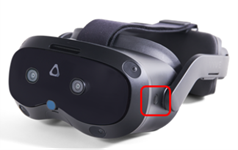
Option 1: draw a new boundary. Briefly press the button on the left side of the VR headset.
Option 2: the boundary was lost. Using a controller, select “OK.”
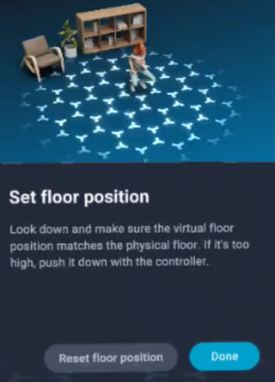
2. Check that the automatically detected floor is at the correct height. It is marked with blue symbols.
If it is not, lower yourself and place a controller in contact with the floor to set the floor position correctly. Stand back up and select the “Done” button with the controller.
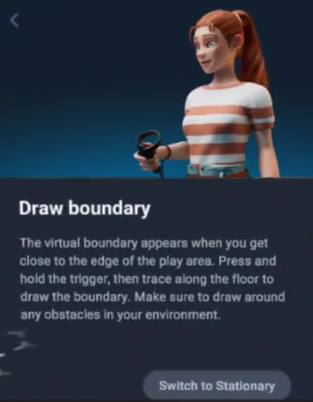
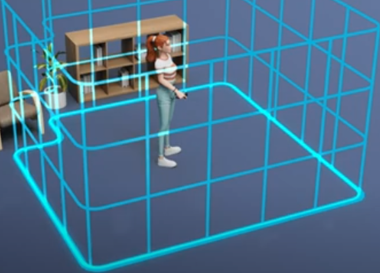
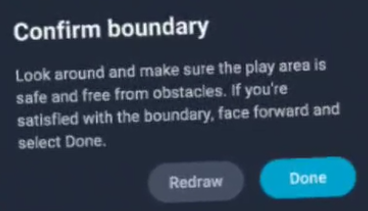
3. Next you will be prompted to draw the room boundary.

Contact your local distributor
Our world-wide experts are ready to help you find the right solution.