Solutions / Balance Testing Equipment / How to navigate the menus in the HTC Vive Focus Vision VR Headset
How to navigate the menus in the HTC Vive Focus Vision VR Headset
How to navigate the menus in the HTC Vive Focus Vision VR Headset
Learn how to navigate the menus in the HTC Vive Focus Vision VR Headset, used with the Virtualis BalanceVR software. Read more.
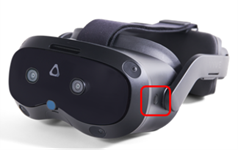
Menu bars available in wireless streaming mode
The menus are only used for setting up the headset or troubleshooting. They should not be used during a patient session.
Note: Patients should not enter nor push any menu buttons during rehabilitation. This will stop the Virtualis hardware and software which may result in the patient’s loss of balance. As always in rehabilitation, it is recommended to safely always guard your patient.
You will have access to different menus depending on whether you are using your VR headset in the wireless or wired streaming modes.
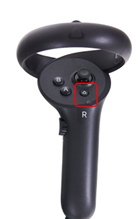
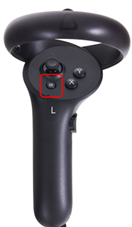
To enter the menus, you need to put the headset on your head. There are three different buttons to access menus. One on the headset, one on the right controller, and one on the left controller. One controller is needed to point and navigate in the menus.
Hold button for 3 seconds to enter.
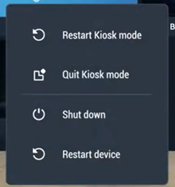
The headset automatically starts in Kiosk mode. Kiosk mode needs to be activated to run the Virtualis software. For troubleshooting, Kiosk mode needs to be deactivated.
To enter / exit Kiosk mode, you need to enter the 4-digit code: 0000.
To exit the headset menu, use one controller and click the “X” button on the bottom.

Contact your local distributor
Our world-wide experts are ready to help you find the right solution.