Solutions / Balance Testing Equipment / How to create a report
How to create a report

How to create a report

This quick guide provides information on viewing patient results, creating a patient report, and exporting the report to a PDF with the Virtualis BalanceVR.
Get a quote Find a distributor

Viewing patient results

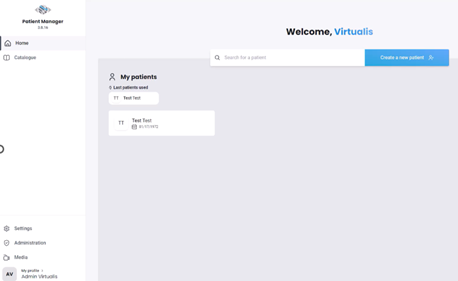
Open the Virtualis application, and you will arrive at the home page.
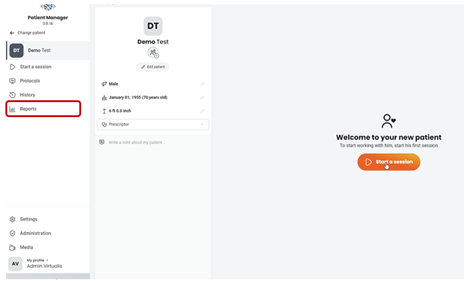
Select “Reports” on the left side of the screen.
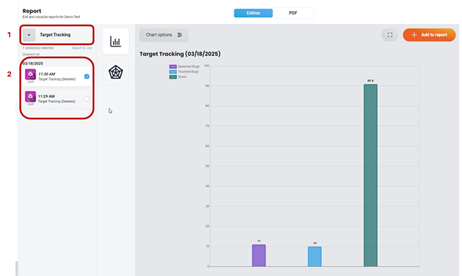
Start by selecting the software module, then choose one or more sessions to view the results.
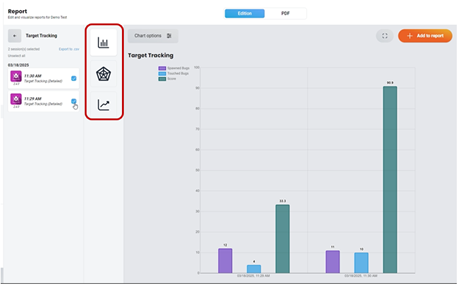
Change the graph type to display the results in a different format. The available graph options will vary based on the selected software module and the number of sessions.
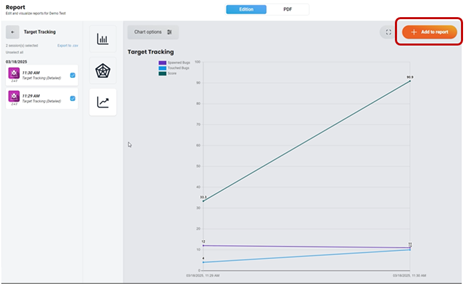
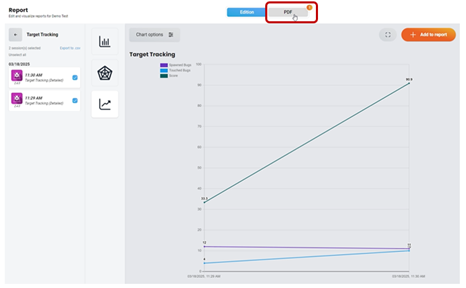
Select the intended graph and click on the “+ Add to report” button in the upper right corner.
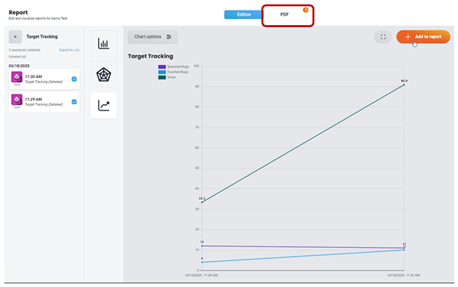
A number will appear on the PDF tab, indicating that the software module results have been added to the patient report.
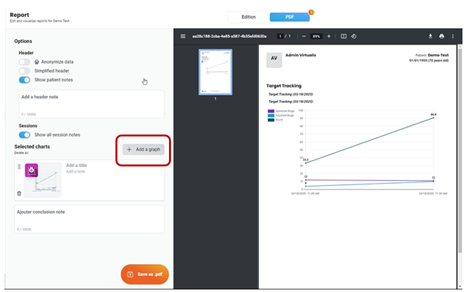
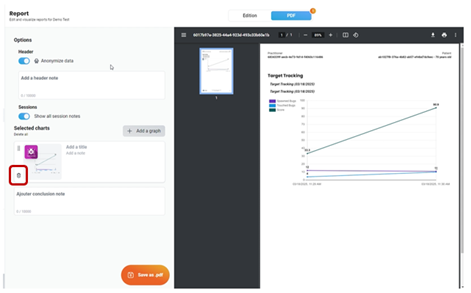
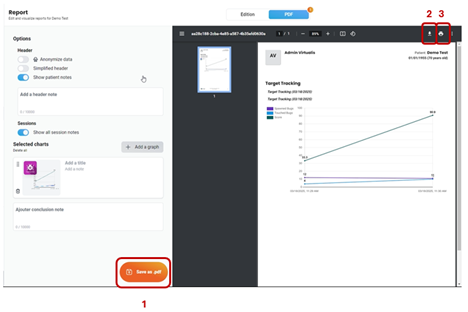
Continue to add patient results to the report by following the above steps. Once you have finished adding results to the report, view the report by clicking on the PDF tab.
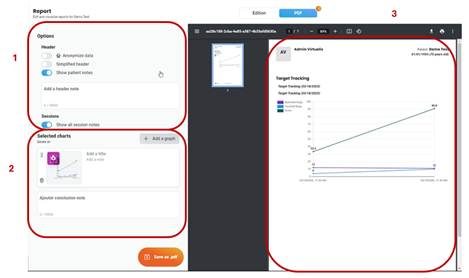
The PDF tab is divided into three sections:

Contact your local distributor

Our world-wide experts are ready to help you find the right solution.
Find a distributor