Solutions / Audiometers / How to set up protocols in the Equinox Evo software
How to set up protocols in the Equinox Evo software
How to set up protocols in the Equinox Evo software
Equinox Evo Support
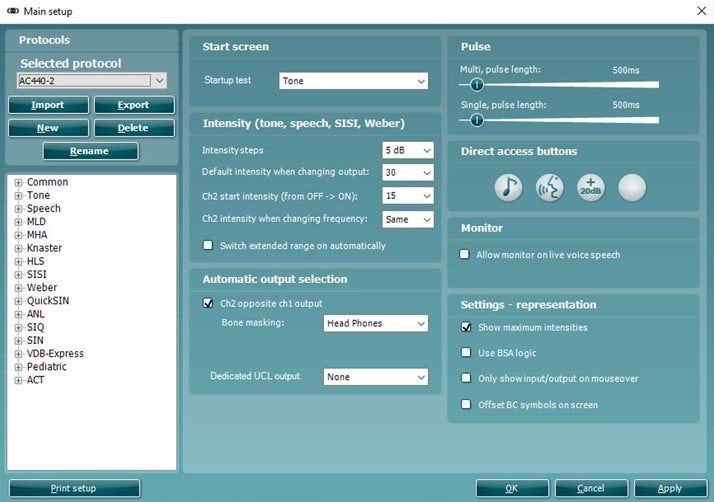
This quick guide is intended to provide basic instructions on how to work with protocol setups in the AC440 module in the Equinox Suite.
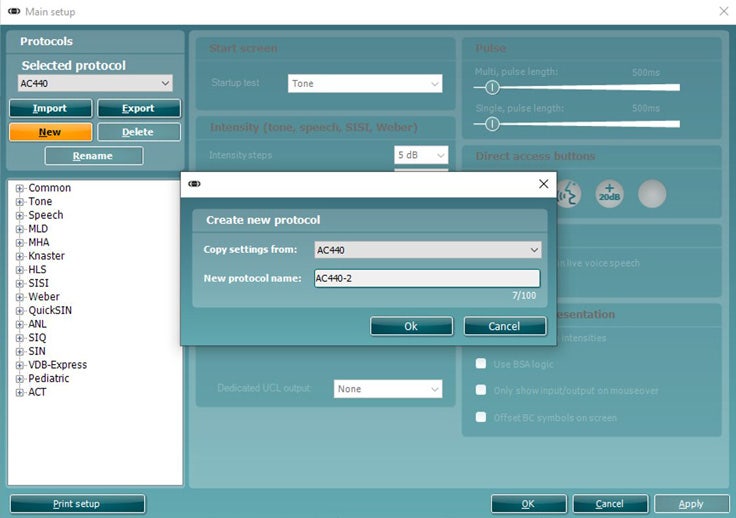
There are many different demands and wishes regarding how an audiometer should both function and appear depending on the specific situation and national standards. One of the greatest advantages of the AC440 module is the flexibility, enabling you to tailor the system according to your specific preferences in the so-called “test protocols”.
The below describes the basic functionality on how to work with the AC440 protocols.
Launch the Equinox Suite from Noah, OtoAccess®, or stand-alone.
Ensure you are on the AC440 screen. Click on the AUD tab if Audiometry is not the default startup screen.
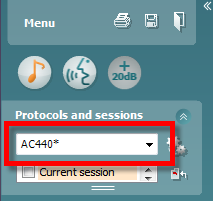
Under Protocols and Sessions, both factory test protocols with standard/factory test parameters and personalized test protocols can be selected.
Note: The protocols available in the drop down will depend on whether factory defaults or country-specific defaults were chosen during the installation of the Equinox Suite. Therefore, certain test protocols may be hidden. To hide or un-hide protocols, go to Menu | Setup | Show/Hide Protocols.
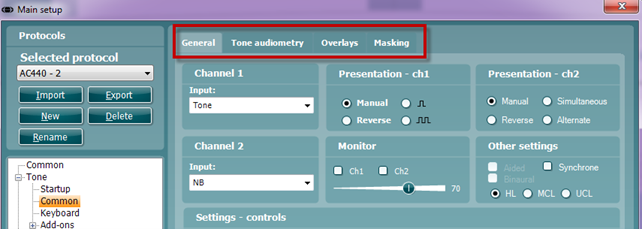
Once in the AC440 Setup, available tests will be listed to the left. Each test can be unfolded to access its options. Each test contains the following options:
Contact your local distributor
Our world-wide experts are ready to help you find the right solution.