Solutions / Audiometers / How to print without a database
How to print without a database
How to print without a database

Option 1: Set your printer to default PDF print
There are 3 options for printing without a database on the AC40 clinical audiometer. Please note that Interacoustics’ Diagnostic Suite allows for upload onto the computer, it is not a database.
Please remember that in addition to the below, instructions for printing are always contained in your equipment manuals.
To do this, navigate to your computer system’s printer and scanner’s folder. The easiest way to navigate to this is by typing in ‘printer’ into the search bar on the bottom left-hand corner of your computer (Figure 1).
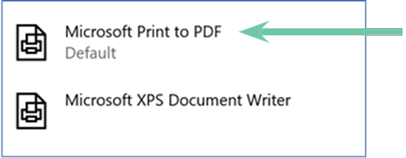
Once you are in your settings, you can click on ‘Microsoft Print to PDF’ (Figure 2) and then select ‘Set as Default’.
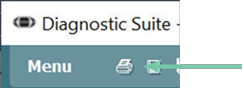
After you have opened your Interacoustics software and uploaded or performed your test, you can click the Print icon (Figure 3), and the PDF save option will automatically appear.
You will now save the file as your Patient name (and/or any other identifying information you choose for this patient) to your chosen computer location. The PDF is then ready to be uploaded into the third-party software.
This is the quickest and easiest method for saving results to PDF. Please note that no patient information is contained on the printed form in this fashion, only the electronic file name.
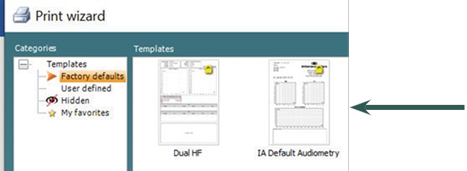
To have client details on the printed form, you need to perform Option 2.
Contact your local distributor
Our world-wide experts are ready to help you find the right solution.