Solutions / Audiometer Keyboard / How to use the Audiometer Keyboard
How to use the Audiometer Keyboard
How to use the Audiometer Keyboard
Are you an owner of or looking to purchase the Audiometer Keyboard?
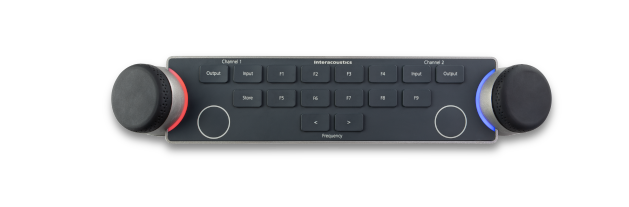
Overview
In this quick guide, you will learn how to setup and use Interacoustics’ dedicated Audiometer Keyboard.
The Audiometer Keyboard supports clinicians who wish to use a dedicated keyboard to perform audiometry.
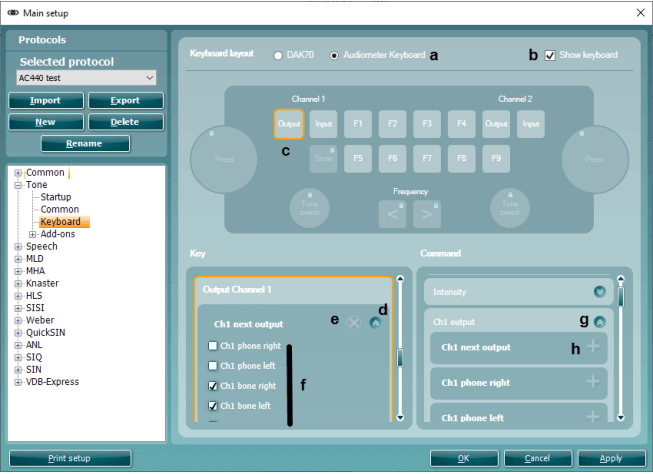
To enter the Keyboard options for tone testing, open the AUD module in Affinity suite and unfold the Tone options and click Keyboard. This is used to set up macros for the dedicated audiometry keyboard shown below.
Pressing the left rotating dial will enable/disable ‘Talk forward function.’
Pressing the right rotating dial will enable/disable the ‘Talk back’ option.
The Audiometer Keyboard has an LED light indicator which changes status during different operations.
These different colours and their statuses are listed and shown below.
RED-Light: Indicates right ear selected
Contact your local distributor
Our world-wide experts are ready to help you find the right solution.